

Chevrolet Google Built-In: Usage and How It Works
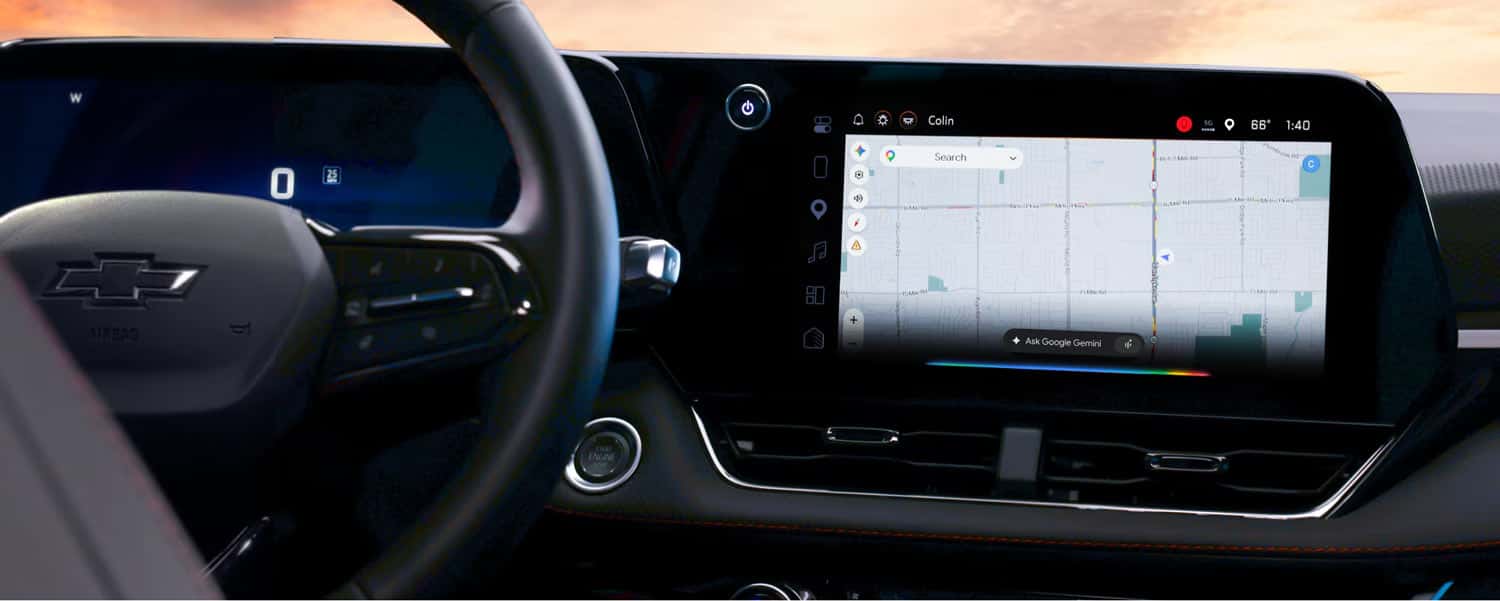
The convenience of staying in touch with your office and family, booking a table at your favorite restaurant, accessing important messages, navigating unfamiliar roads, or finding points of interest, even behind the wheel of your Chevy, is invaluable.
One such convenient feature that makes this possible is Chevrolet Google Built-In. Chevy owners can stay on the go while driving, even if they leave their phone at home.
Key Takeaways
- No phone is required, thanks to Google Built-In running natively on your Chevy’s touchscreen and system.
- Native Google Maps integration works directly with your vehicle’s internal data.
- The Hands-Free Google Assistant & Gemini AI feature lets drivers use natural voice commands to send texts, make calls, adjust climate control settings, and more without taking their eyes off the road.
What Is Chevrolet Google Built-In?
Chevrolet Google Built-In gives you a seamless, hands-free experience with a native infotainment operating system that embeds Google apps, maps, and voice assistants directly into your Chevy’s touchscreen, so you don’t even need to plug in your smartphone.
How to Set Up Google Built-In
Before setting up Chevrolet Google Built-In, park your vehicle and have your GM and Google Account sign-in details ready. Keep your phone nearby for pairing and contact syncing.
Google Account Setup
While a Google Account isn’t strictly required to use the system, signing in will give you the most personalized Google Built-In experience.
If you don’t have a Google Account, you can easily set one up through Gmail on your phone or desktop and then sign in to your Google Account from your Chevy’s center display.
Owners will need to keep their phone nearby to complete the rest of the Google Built-in setup process, including syncing their contact list to their Google Account and enabling full Google capabilities in the vehicle.
Things to Do Before You Start the Setup Wizard
- Sign in to your Google Account when prompted.
- You may pair your phone via Bluetooth at this time. However, skipping any setup steps may compromise the full user experience of the Google Built-in system.
- Your Chevrolet vehicle’s transmission must be in Park to complete the Google Built-in setup. If you start driving before you complete the process, the Setup Wizard will close, and the next time that you start your vehicle, you will receive a reminder to complete the Google Built-in setup.
- After you complete the setup process or skip the steps, you will be taken to the infotainment system’s Home screen.
Owners can find any additional help they need setting up their Google Built-in system from Google itself.
Follow the Setup Wizard
The Setup Wizard walks you through setup and personalization whenever you create a new user profile.
Enable Google capabilities
Logging in to your Google Account enables Google apps and services, such as Gemini or Google Assistant, on the center display.
- On the center display, select the “Home” icon and select “Settings”
- Scroll down the list of options and choose “Google” from the bottom of the list
- Select “Gemini” or “Google Assistant” from the list of Google settings
- Ensure all the available options are set to “ON”
- Verify you are logged into your Google Account so all capabilities are enabled by selecting the Profile button on the center display.
Enable Gemini or Google Assistant to read text messages
To enable Gemini or Google Assistant to read your text messages, follow these steps.
- On the center display, select the Settings icon.
- Scroll and tap “Google” from the Settings menu
- Select “Google Assistant.”
- Scroll and select “Read and Respond to Vehicle Notifications.”
These settings allow Gemini or Google Assistant to read your new text messages aloud in your Chevy via Voice Assistant.
Personalize your Google Built-In experience.
Chevy owners get to customize the Google Built-In feature to their liking in several ways:
- Rearrange app icons on the Home screen by tapping and holding an icon to enter edit mode, dragging it to your desired spot, and releasing.
- Add your favorite apps to the App Tray to create quick-access shortcuts
- Download your favorite apps
- Save your favorite audio by tapping the STAR icon.
- Open Google Maps
Using Google Apps in Your Chevrolet
Using the Google Built-In system apps in your Chevy is pretty straightforward.
Google Maps Navigation and EV Route Planning
Tap Google Maps on the Home screen or say “Hey Google, navigate to” followed by your destination. Depending on your vehicle’s equipment, directions may also appear in the instrument cluster.
For owners of any Chevy EV model, the system even recommends routes that include charging stations along the way.
Drivers can also get real-time traffic updates, look up local points of interest, and see live charging or fueling stops.
Voice Help with Gemini or Google Assistant
Voice help activates when you say “Hey Google” out loud or press the push-to-talk/voice button on your steering wheel.
Once activated, drivers can make phone calls, send text messages, set reminders, or control the vehicle’s climate using voice commands.
Downloading Apps with Google Play
Open the Google Play app store directly from your Chevy’s center display while parked to download native in-vehicle apps, music streaming services, podcasts, and audiobooks.
Compatible Vehicles, Connectivity, and Service Plans
Chevrolet Google Built-In availability varies by model year, trim, and infotainment system. Check the specific vehicle’s equipment and OnStar services before choosing a data plan. Examples of models offered with Google Built-In include:
- 2022 and newer Silverado 1500 and HD
- Tahoe
- Suburban
- Colorado models with the 11.3-inch touchscreen
- Traverse
- Equinox & Equinox EV
- Blazer EV
- Silverado EV
- Corvette
- Trailblazer with the 11-inch display
- Malibu
Google Built-In FAQs
We provide answers to questions you may have about Google Built-In.
How Is Google Built-In Different from Android Auto?
Google Built-In is a native operating system built directly into your Chevy’s hardware. In contrast, Android Auto is a phone-mirroring app that projects your smartphone’s display onto a vehicle’s infotainment system.
Do You Need a Google Account or a Connected Phone?
No, Chevy owners don’t need a Google Account or a connected phone to use basic Google Built-In features, though an account unlocks full functionality.
Which Cars Have Google Built-In?
Several vehicles offer Chevrolet Google Built-In, including select 2022 and newer Silverado 1500 and HD models, Tahoe, Suburban, Colorado (with the 11.3-inch touchscreen), Traverse, Equinox, Equinox EV, Blazer EV, Silverado EV, Corvette, Trailblazer (with the 11-inch display), and Malibu.
Availability can vary by vehicle, so the best way to confirm Google Built-In is to contact your Chevrolet dealership directly to verify availability for the specific year, model, and trim you’re interested in.
Learn More at Betley Chevrolet
Explore new Chevrolet vehicles at Betley Chevrolet in Derry, NH, and ask our team which models offer Google Built-In.
Visit our expert sales team at Betley Chevrolet and experience excellent customer service when shopping for your next Chevrolet, new or certified pre-owned.
0 comment(s) so far on Chevrolet Google Built-In: Usage and How It Works